Cliptory
Win+V-style clipboard history, designed natively for macOS.
Search copied text, images, files, and screenshot text — then paste it back without breaking focus.
What it does
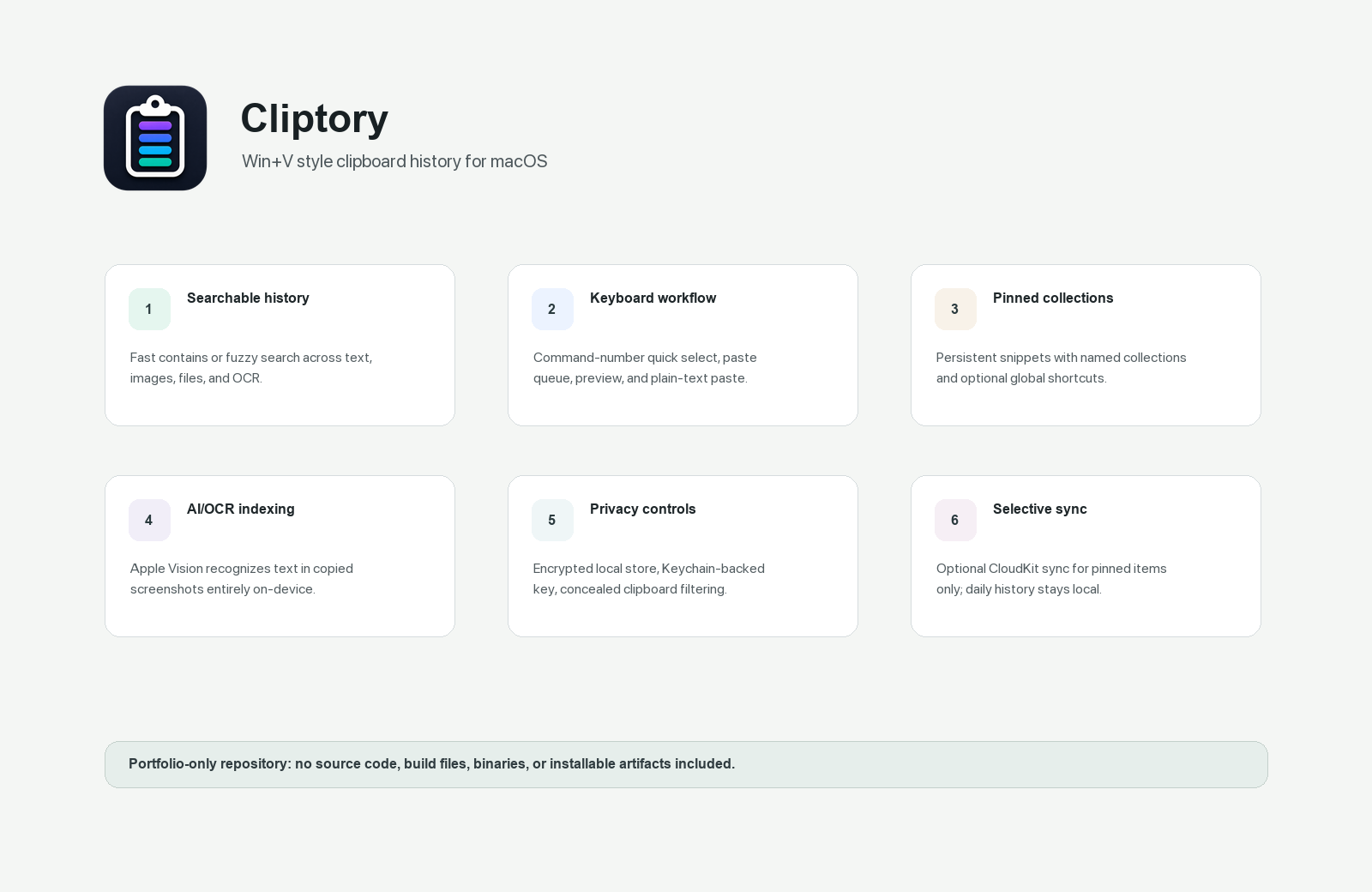
Cliptory remembers everything you copy — text, links, code, colors, images, and files — and puts it one keystroke away. Press your shortcut, type a few letters, hit Return, and it's pasted. Your history is encrypted on your Mac, searchable by the text inside your screenshots, and never leaves the device unless you choose to sync pinned items to your own iCloud.
Highlights
- Searchable screenshots via on-device OCR — nothing sent to the cloud
- Paste queue, global snippet shortcuts, and text transforms
- AES-256 encrypted history with the key held in your Keychain
- Per-app auto-forget: tell Cliptory to make copies from an app (password managers, banking, anything sensitive) disappear after a time you set
- Password-manager aware and per-app privacy rules
- Deeply customizable — shortcuts, rules, and behavior tuned per app
- Local by default: no account, no analytics, no telemetry
- Built and maintained by one indie developer — no data selling, no ulterior motives, and I read every piece of feedback
See it in action
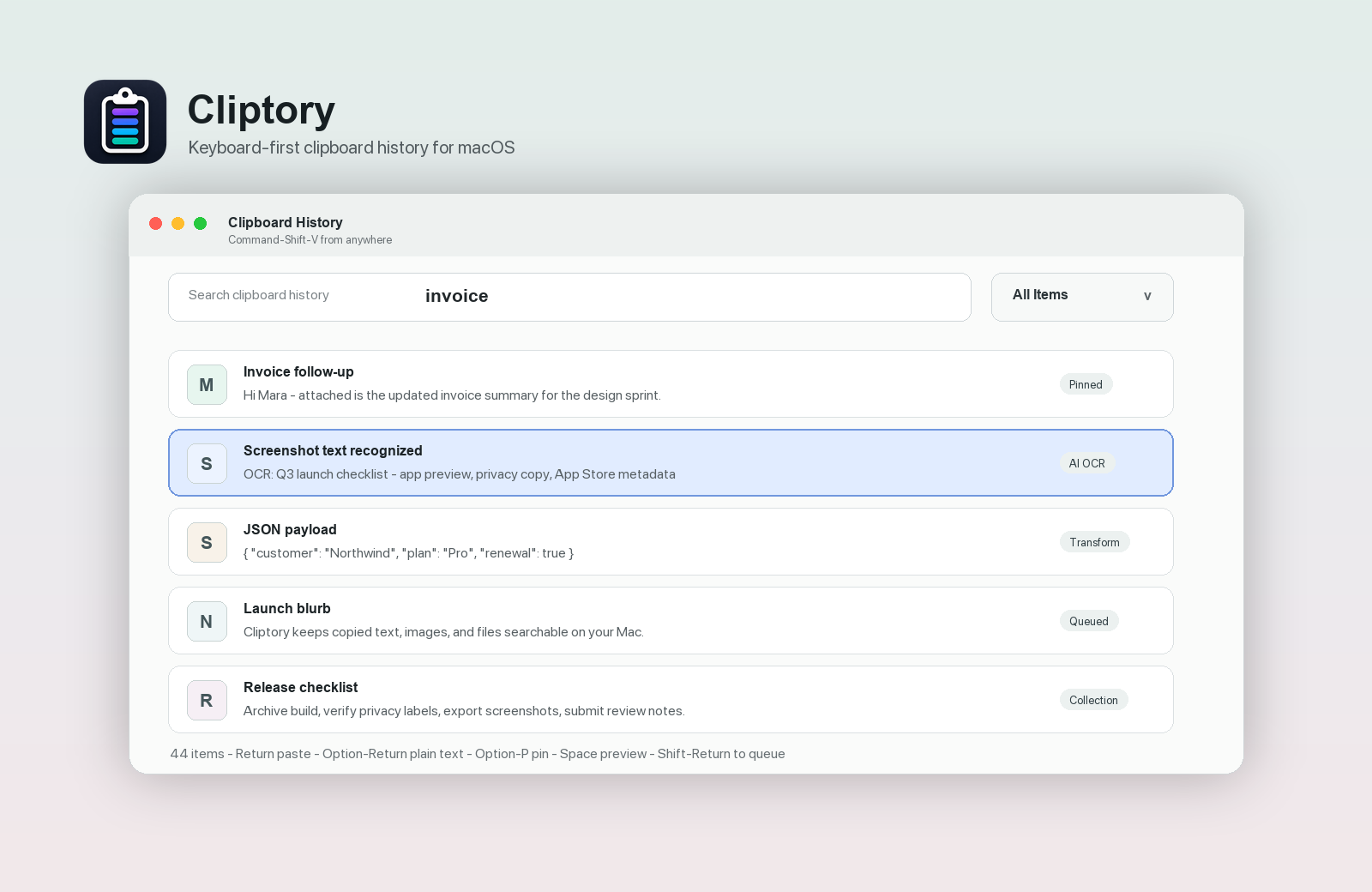
Fast retrieval
Open with a global shortcut, fuzzy-search across your whole clipboard history, and paste with Return.
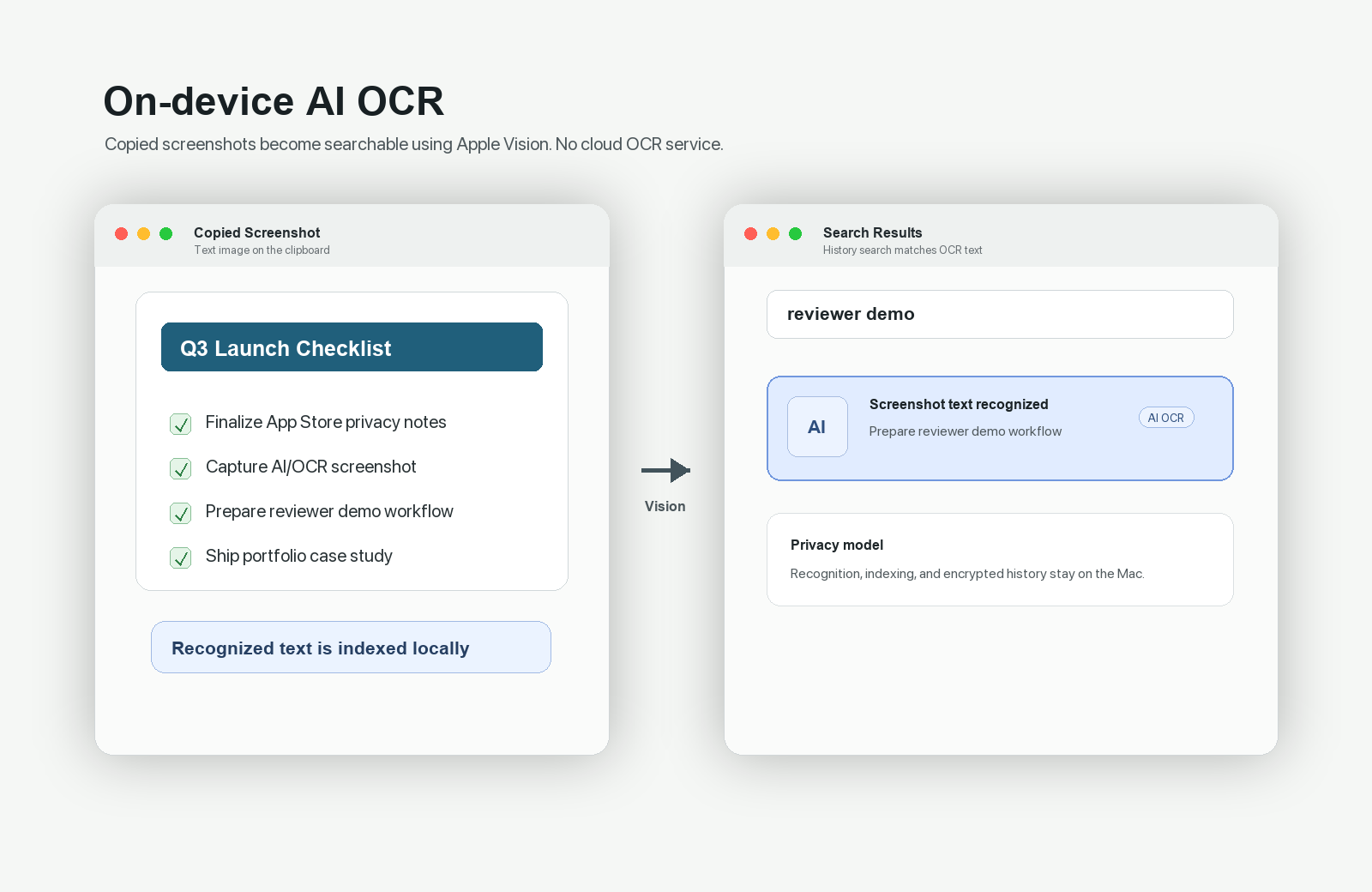
On-device AI/OCR
Apple Vision reads text inside copied screenshots and adds it to your local search index — nothing leaves your Mac.
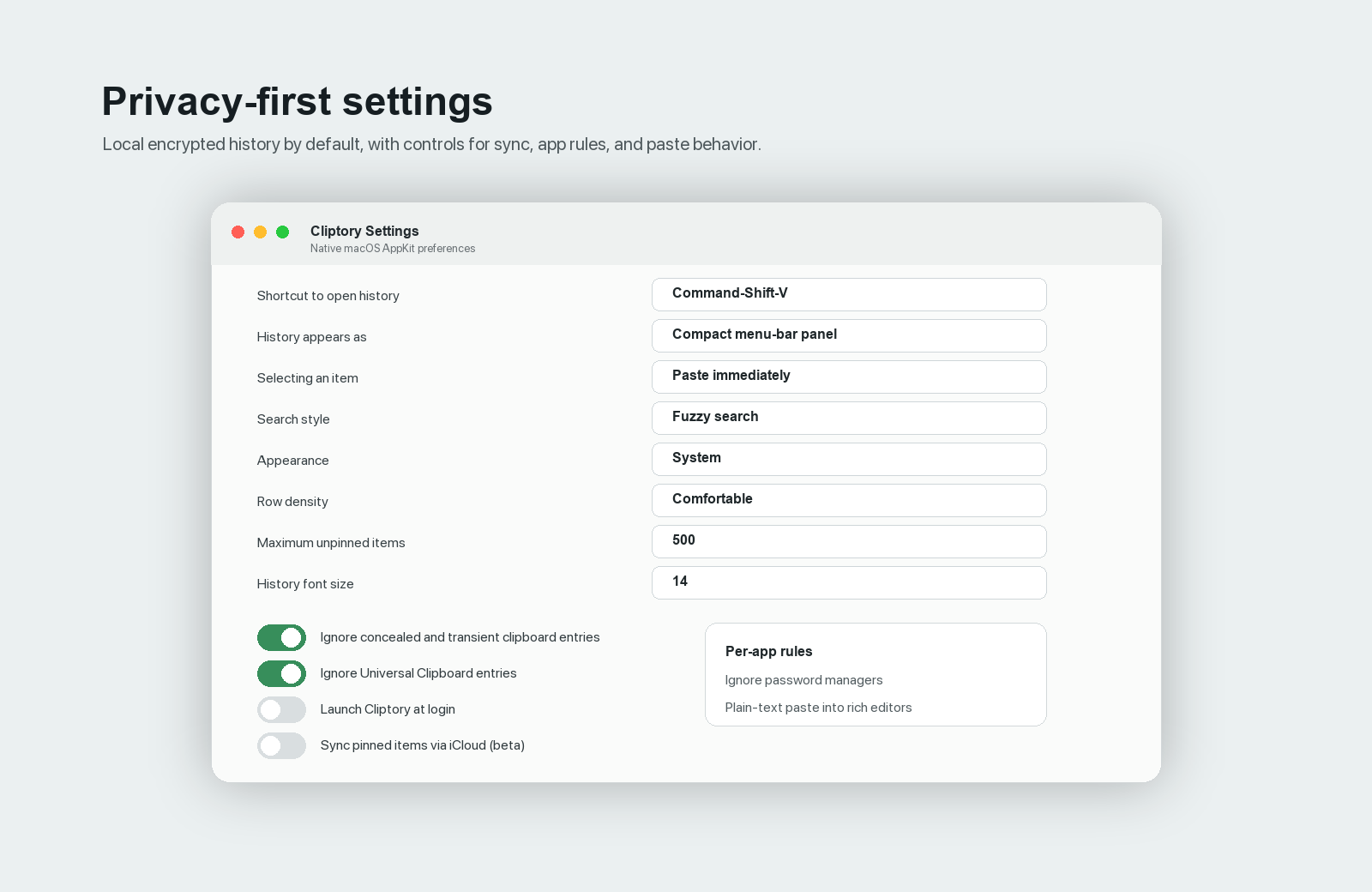
Privacy by design
Encrypted at rest, concealed-entry filtering, and optional iCloud sync scoped to pinned items only.
Flexible paste workflows
Paste queue, quick transforms, and per-app rules for ignored apps and plain-text targets.
System requirements
- macOS 14 (Sonoma) or later
- Apple silicon or Intel Mac
- An iCloud account is only needed if you turn on optional pinned-item sync
Troubleshooting
Accessibility permission. Cliptory uses Accessibility only to send Cmd+V so a selected item pastes into the frontmost app. If auto-paste isn't working, open System Settings → Privacy & Security → Accessibility, and make sure Cliptory is listed and enabled. If it's already listed but still not working, toggle it off and on, or remove Cliptory from the list with the “–” button and relaunch the app to be prompted again. Without this permission Cliptory still copies the selected item so you can paste it manually with Cmd+V.
iCloud sync. Sync covers only pinned items and collections — your everyday clipboard history always stays local. If pinned items aren't appearing on another Mac: confirm both Macs are signed into the same Apple ID, that System Settings → [your name] → iCloud → iCloud Drive is on, that the sync toggle is enabled in Cliptory's Settings on both Macs, and that both are online. Sync can take a moment; use “Sync Now” in Settings to force a pass. Being signed out of iCloud or having iCloud Drive disabled will pause sync until restored.
Deleting your data
- Local history: In Cliptory, delete individual items with Option-Delete, or clear everything from the menu bar / Settings. Uninstalling the app and deleting
~/Library/Application Support/Cliptory/(inside the app's sandbox container on Mac App Store builds) removes all local data; the encryption key can be removed from Keychain Access by searching for “Cliptory”. - Synced pinned items: Unpinning an item or deleting a collection removes it from iCloud on your next sync. To remove everything at once, turn off sync and delete Cliptory's data from System Settings → [your name] → iCloud → Manage → Cliptory.
Support
Cliptory — clipboard history for macOS. Questions, bug reports, or feature requests? Email kadin.hunter.ai@icloud.com and I'll get back to you.